We use cookies to make your experience better. Learn more

Shipping & Delivery Details
At SharkNinja, we make it easy to get your order delivered wherever you are in the UAE. Whether you’re in a major city or a remote community, here’s everything you need to know about shipping times, rates, and options before placing your order.
Where SharkNinja Ships in the UAE
Delivery is available only to locations and delivery addresses that fall within our designated service areas.
Most orders are typically delivered next day excluding weekends and public holidays. Delivery timeframes are estimates only and may vary depending on location, order volumes, public holidays, weather conditions, logistical constraints, or other circumstances beyond our reasonable control.
Delivery times may be affected by factors outside our reasonable control, including high order volumes, public holidays, weather conditions, operational disruptions, or incomplete or inaccurate delivery information provided by customers.
Delivery availability may vary depending on the delivery location and serviceability of the address provided.
Shipping Costs and Free Delivery Options
We offer free standard delivery to addresses to delivery addresses within our designated service coverage area in UAE. This offer applies to standard shipping and is valid for all purchases made through our website. SharkNinja reserves the right to amend or withdraw promotional delivery offers at any time.
Risk of loss and title to products pass to the customer upon delivery to the delivery address provided during checkout.
How to Save Your Address and Payment Details in My Account
Want to make future orders even easier? Set up your address and payment details in your My Account before you shop.
Once logged into your My Account, follow the directions below to set up your address and preferred payment details.
Customers are responsible for ensuring that delivery addresses and contact details provided at checkout are complete and accurate. SharkNinja shall not be responsible for delays or failed deliveries resulting from incorrect or incomplete information provided by the customer.
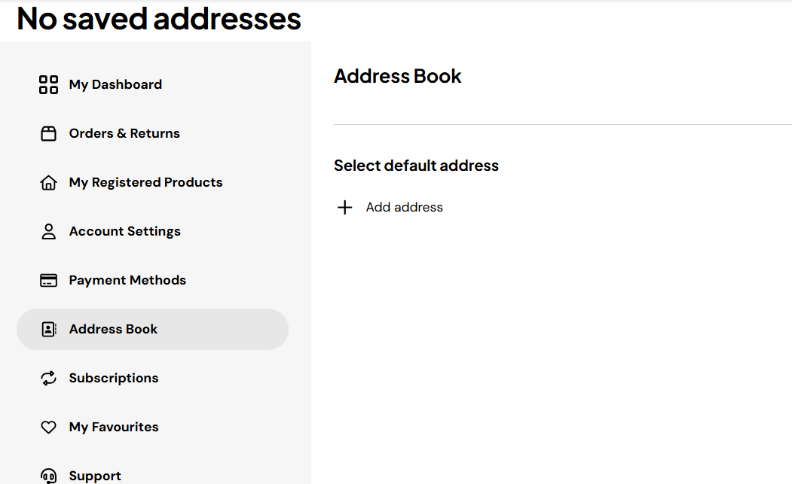
Step 1. Click on the Address Book
- In the left side navigation bar, click on Address Book to access the addresses saved to your file.
- If you have not yet added an address, click on the Add address button.
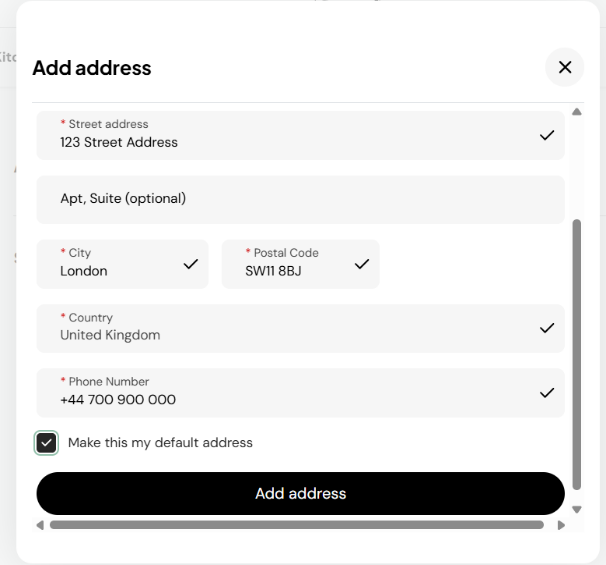
Step 2. Enter your contact information
- Complete all the mandatory fields in the window, including the address nickname.
- Select ‘Make this my default address’ to automatically use it for future orders.
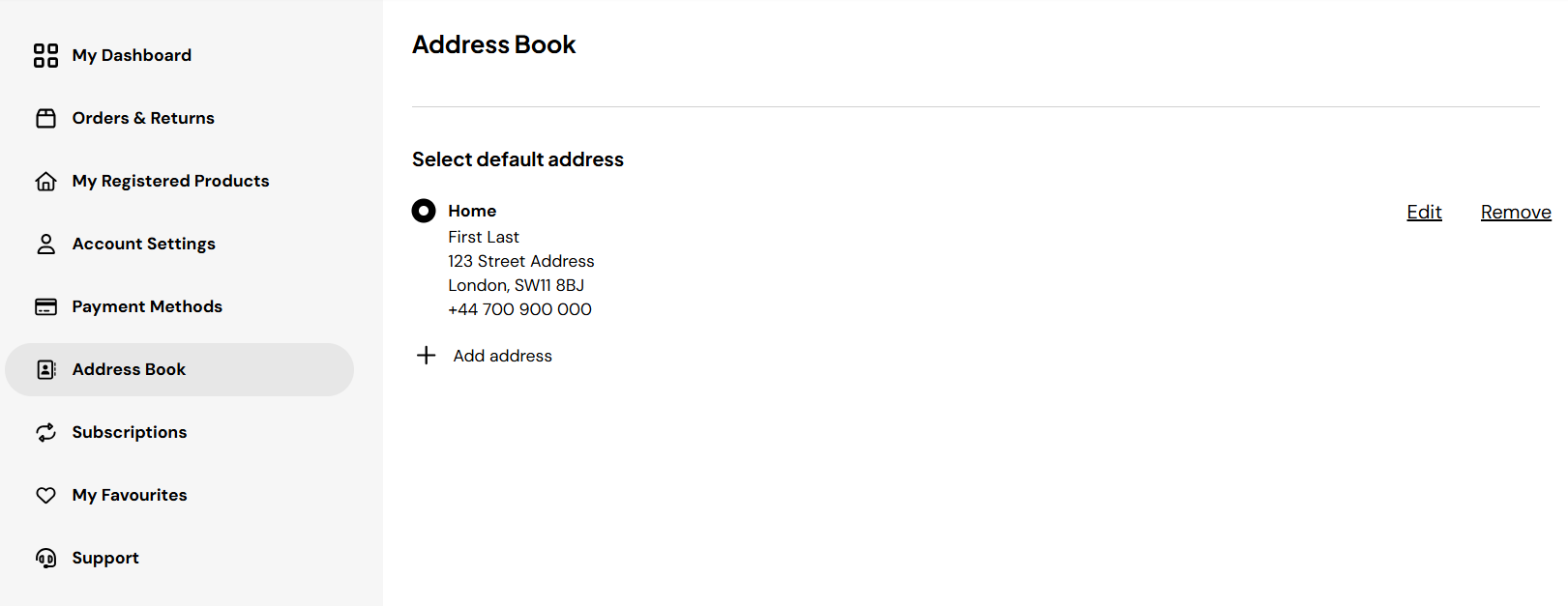
Step 3. Verify it was added and is accurate
- Review the information on the main screen.
- If you need to edit the information, click on the edit button to the right of the address.
- To add another address, click once again on the “+ Add address” button.
Still have questions about shipping or delivery?
Our team’s here to help — Contact Us for support.